
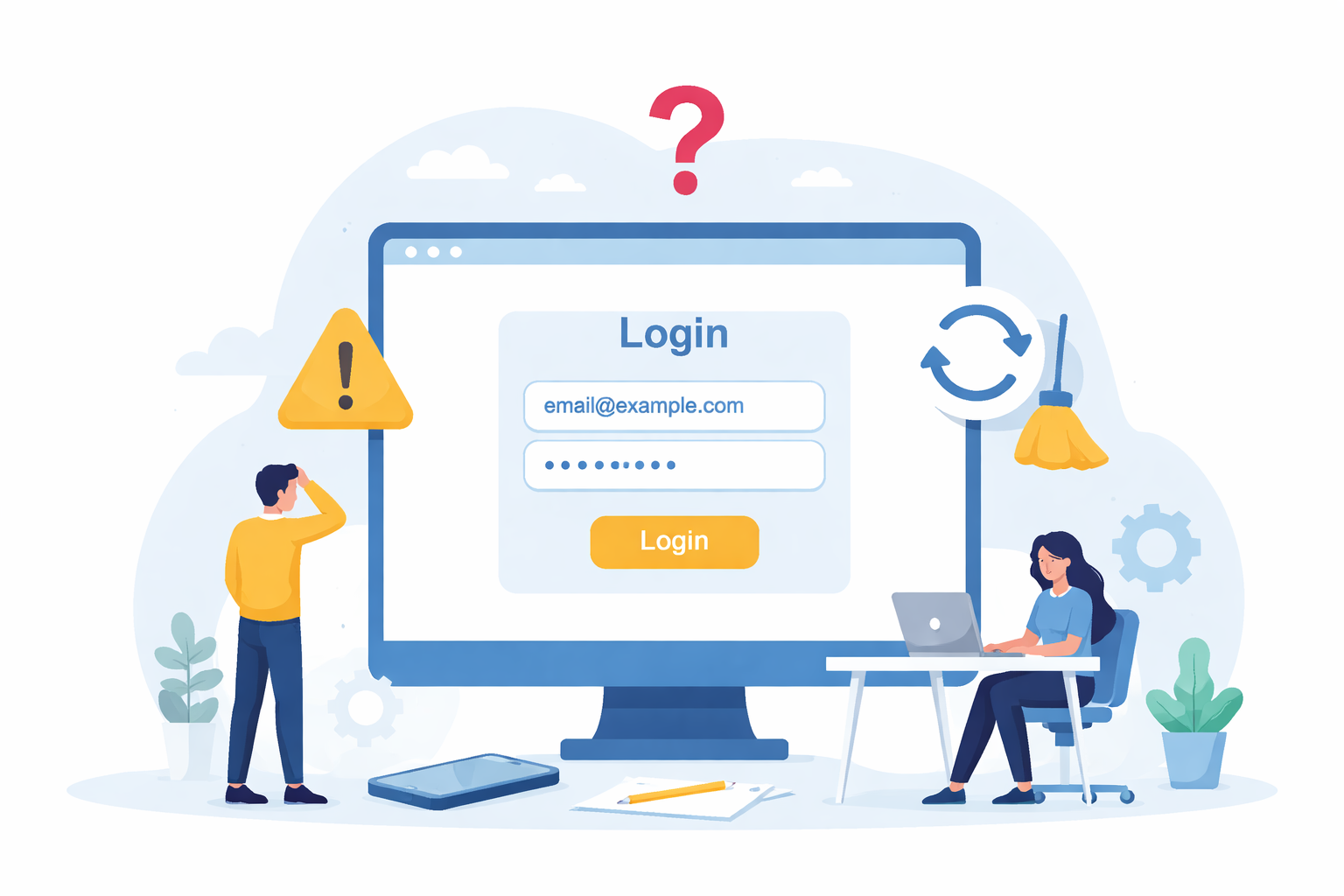
 Why websites sometimes won’t let you sign in — and what usually fixes it
If a website suddenly won’t let you sign in — even though you know your username and password are correct — the problem is often not your account.
In many cases, the issue is caused by saved browser data that no longer matches what the website expects.
Here are the most common symptoms and the fixes that work most of the time.
Common Symptoms
You may see one or more of the following:
-
The site keeps redirecting you to a home page instead of logging you in
-
You’re logged in, but features you pay for are missing
-
The site works in one browser but not another
-
You reset your password, but the site still won’t accept it
-
You’re repeatedly asked to sign in again and again
The Most Common Cause
Modern websites use secure sign-in systems that rely on:
-
Cookies
-
Cached session data
-
Temporary authentication tokens
If any of that data becomes outdated or corrupted, your browser can get “stuck” remembering the wrong version of your account.
This often happens after:
-
Upgrading from a free account to a paid one
-
Changing your password
-
Enabling two-factor authentication
-
Long periods of inactivity
-
Website updates made by the service provider
The Quick Fix (Try This First)
-
Sign out completely of the website
-
Close the browser
-
Reopen the browser and go directly to the site’s login page
-
Try signing in again
If that works, you’re done.
The Fix That Solves Most Problems
If the quick fix doesn’t work:
-
Clear your browser’s cache and cookies
-
Close and reopen the browser
-
Sign in again
This forces the browser to forget outdated information and request fresh data from the website.
A Helpful Test
Try signing in using a different browser.
-
If it works in another browser, your account is fine
-
The problem is stored browser data in the original browser
Some browsers (especially those with strong privacy controls) are more likely to hold onto problematic login data.
What This Is Not
In most cases, login problems like these are not:
-
A hacked account
-
A billing issue
-
A password problem
-
A problem with the website itself
They’re usually a local browser issue.
When to Get Help
If clearing cache and cookies doesn’t help, or if the issue keeps coming back, it may be time to have a professional look at:
-
Browser settings
-
Security extensions
-
Password managers
-
System-wide privacy or VPN software
Final Tip
When something “suddenly stops working,” assume the simplest explanation first.
Browsers remember a lot — sometimes too much.
Clearing old data is often all it takes.