What to do when you can’t login to a website

Why websites sometimes won’t let you sign in — and what usually fixes it

If a website suddenly won’t let you sign in — even though you know your username and password are correct — the problem is often not your account.

In many cases, the issue is caused by saved browser data that no longer matches what the website expects.

Here are the most common symptoms and the fixes that work most of the time.


Common Symptoms

You may see one or more of the following:

  • The site keeps redirecting you to a home page instead of logging you in

  • You’re logged in, but features you pay for are missing

  • The site works in one browser but not another

  • You reset your password, but the site still won’t accept it

  • You’re repeatedly asked to sign in again and again


The Most Common Cause

Modern websites use secure sign-in systems that rely on:

  • Cookies

  • Cached session data

  • Temporary authentication tokens

If any of that data becomes outdated or corrupted, your browser can get “stuck” remembering the wrong version of your account.

This often happens after:

  • Upgrading from a free account to a paid one

  • Changing your password

  • Enabling two-factor authentication

  • Long periods of inactivity

  • Website updates made by the service provider


The Quick Fix (Try This First)

  1. Sign out completely of the website

  2. Close the browser

  3. Reopen the browser and go directly to the site’s login page

  4. Try signing in again

If that works, you’re done.


The Fix That Solves Most Problems

If the quick fix doesn’t work:

  1. Clear your browser’s cache and cookies

  2. Close and reopen the browser

  3. Sign in again

This forces the browser to forget outdated information and request fresh data from the website.


A Helpful Test

Try signing in using a different browser.

  • If it works in another browser, your account is fine

  • The problem is stored browser data in the original browser

Some browsers (especially those with strong privacy controls) are more likely to hold onto problematic login data.


What This Is Not

In most cases, login problems like these are not:

  • A hacked account

  • A billing issue

  • A password problem

  • A problem with the website itself

They’re usually a local browser issue.


When to Get Help

If clearing cache and cookies doesn’t help, or if the issue keeps coming back, it may be time to have a professional look at:

  • Browser settings

  • Security extensions

  • Password managers

  • System-wide privacy or VPN software


Final Tip

When something “suddenly stops working,” assume the simplest explanation first.
Browsers remember a lot — sometimes too much.

Clearing old data is often all it takes.

(AI assisted material)
Posted in Uncategorized | Leave a comment

When Should You Replace Your Old Apple Products?

The original iMac, circa 1998.

People often wonder if when to buy a new computer if their old one is still working. If you have a Mac there are some pretty specific guidelines regarding repairs by the manufacturer and even availability of parts.

Apple considers products that were discontinued (no further sales) 5 to 7 years ago to be “vintage”, but they will still service those products within the USA. Products older than 7 years since being discontinued are considered “obsolete” and they will not service them at all. So in terms of their support, it’s more about the date they stopped selling them than the date you bought it. Often that may give you a couple more years of service from Apple if something needs repair or replacement. Of course, you would have to pay for all parts and labor.

With machines that are 5 years or older, I would say, 1) If everything is working fine for your needs, no reason to replace. 2) At some point you may not be able to upgrade the machine to the latest operating system (macOS). 3) There are versions of macOS that don’t support current web browsers like Google Chrome, Mozilla Firefox and even Apple Safari. If that were the case, I would recommend getting a new computer, for security reasons. 3) If anything major goes dies on a machine that old, it’s probably a better investment to buy a new one. New computers have a lot of improvements that make them faster, such as a solid state hard drive (SSD) rather than the conventional hard drive with spinning platters inside. New ones come with more memory as standard – at least 8GB, which helps to handle the requirements of new operating systems.

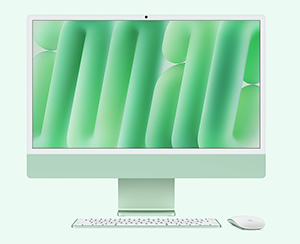
The Apple M4 24-inch iMac, 2025


Posted in Computer, Desktop, Laptop, Mac, Uncategorized | Leave a comment

Beware Fake Tech Support Screen Warnings

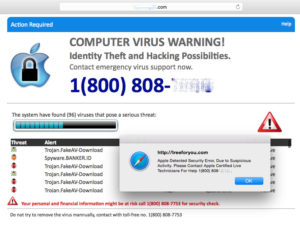
A fake computer virus warning on a Mac

A fake computer virus warning on a Mac

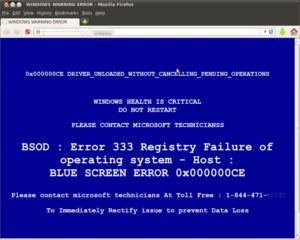
I have had several clients contact me after having responded to a scary notice on their computer screen that said their computer had been hacked and recommending that they call the toll free 1-800 number listed to reach a so-called Microsoft tech support service. Some of these warning screens are accompanied by scary music or tech failure sounds. Many clients gave their credit card number to the fake tech support person at the other end of the call and allowed them to log onto their computer to remove the supposed “malware infection”. In fact, the pop-up notice was itself malware, which is why it wouldn’t go away. In most cases the fake tech support people then fix a lot of problems that don’t exist in exchange for several hundred dollars worth of “protection” for one year. It reminds me of the Mafia’s old protection racket. A gangster would visit every retail small business in the neighborhood and offer them protection services for a monthly fee, with the warning that if they didn’t pay up, “something terrible could happen”. It was a thinly veiled threat in the guise of a helpful warning. And of course, if the business owner didn’t agree to the protection, terrible things did happen.

A fake computer virus warning on a PC

A fake computer crash warning on a PC

Please, don’t fall for it. If you get one of those scary pop-up notices, call a bona fide computer support specialist, not the 1-800 number on the computer screen at that moment. If you did fall for it, first call your credit card company and ask them to cancel the charge. They will probably understand very quickly, as this type of scam is well documented. Second, call us or another tech support company to help purge your computer of any software the fake tech support person installed on your PC or Mac. (Yes, this scam can affect Macs too). You’ll probably come out of the experience with all your precious data intact and all the bugs removed from your computer. You’ll also be wise to the scam, in case it ever happens again.

Note: This scam is different from a “ransomware attack”, which is discussed in a previous article on this site.

Posted in Computer Virus, Mac, Malware, PC, Scams, Uncategorized, Windows | Leave a comment

Windows 10 and Mac El Capitan

Windows10

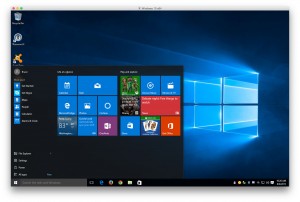
Windows 10

Microsoft’s Windows 10 has been available for downloading since July 29th.  For owners of Windows 7, 8 and 8.1 it’s a free upgrade, at least for a year, so there is no rush to install it. The consensus among reviewers is that it’s going to be excellent, but wait until the bugs are fixed. Windows 10 combines the best features of Windows 7, 8 and 8.1.

Mac’s current operating system, Yosemite OS X (not shown) works very well. The next release is El Capitan, is rumored to be coming in the fall. Since El Capitan is a popular feature within Yosemite National Park, it is generally considered that the new OS will be a refinement of Apple’s Yosemite, just as Mountain Lion was a refinement of Lion, and before that Snow Leopard fixed the problems in Leopard.

El Capitan

El Capitan (Mac OS X 10.10)

A good rule of thumb is to wait until the first update of a new operating system is released before installing it. That would be 10.11.1 for Mac OS X El Capitan and for Windows 10, probably Windows 10.1. Of course, you should ALWAYS do a full backup before install a new operating system. That way if anything goes terribly wrong, or doesn’t work well in the new system, you can go back to the one that did work.

For more one backups, see my blog on that subject.

Posted in Backups, Computer, Mac, Operating Systems, PC, Updates, Windows | Leave a comment

How Big Is the Internet?

earthlightsHere are some interesting facts about the Internet:

The whole Internet is estimated to have 3,8 billion pages. — Source: http://www.worldwidewebsize.com.

Google now processes over 40,000 search queries every second on average, which translates to over 3.5 billion searches per day and 1.2 trillion searches per year worldwide.
— Source: http://www.internetlivestats.com/google-search-statistics.

I remember when the World Wide Web was just getting started, back in the early 1990s. Its growth rate has been, and continues to be, phenomenal.

Posted in Uncategorized, Web issues | Tagged , , | Leave a comment

How to Fix the Spinning Blue Ball on Facebook

fb-blue-ballHave you been getting an endlessly spinning blue ball when you visit Facebook using Firefox? I recently found out why and found a temporary workaround for the problem. The explanation and instructions for implementing a workaround are below. (Of course, if you find this too technical to do yourself and would prefer to have me do this for you, please contact me).

Facebook changed its code and is now not supporting web browsers that are non-webkit compliant. Every web browser reports to a website what type of browser is running and the website can chose what and how data is sent back. The ID for the browser is called the “UserAgent string”. If your UserAgent string reports a non-webkit browser, you get served by Facebook a page with coding errors that show a blue spinning wheel, ball or ring. You might see the error message “inline cursor: pointer never removed from document Element, persistent cursor: progress“, or you might just see the spinning blue ball.

FOR PC USERS—> Here are your options:

  • You can wait for Facebook to fix its code for non-webkit compliant browsers
  • Use a webkit compliant browser such as Google Chrome or Internet Explorer
  • Wait for the non-webkit browsers to upgrade their browser’s code to be compliant
  • Use a workaround by spoofing your browser’s UserAgent string to a webkit compliant string

If you choose the last option above, as I did, here is how:

First, install both of these Add-ons:
https://addons.mozilla.org/en-us/firefox/addon/uacontrol/
https://addons.mozilla.org/…/fi…/addon/user-agent-js-fixer/…

Restart Firefox > Goto Tools > UAControl Options >
Add Site > Site: www.facebook.com > Select Custom > Paste this string into the Custom field:
Mozilla/5.0 (Windows; U; Windows NT 6.1; en-US) AppleWebKit/534.16 (KHTML, like Gecko) Chrome/10.0.648.151 Safari/534.16

It is recommended to remove the custom string when Firefox is updated to be webkit compliant or if Facebook changes their site’s coding again.

FOR MAC USERS—> Here are your options:

  • You can wait for Facebook to fix its code for non-webkit compliant browsers
  • Use a webkit compliant browser such as Safari, Chrome, or Opera
  • Wait for the non-webkit browsers to upgrade their browser’s code to be compliant
  • Use a workaround by spoofing your browser’s UserAgent string to a webkit Compliant string

If you choose the last option above, as I did, here is how:

First, install both of these Add-ons:
https://addons.mozilla.org/en-us/firefox/addon/user-agent-js-fixer/?src=search
https://addons.mozilla.org/en-us/firefox/addon/uacontrol/

(You will have to restart Firefox to finish installing one or both).

Once you have them installed, go to Tools/Add-ons/Extensions – then on the UAControl preferences add www.facebook.com at the top of the window, click Custom and paste this string into the Custom field:
Mozilla/5.0 (X11; Linux x86_64) AppleWebKit/537.36 (KHTML, like Gecko) Chrome/33.0.1750.166 Safari/537.36 OPR/20.0.1396.73172

Click Okay at bottom right and restart Firefox again.

NOTE: Whether you are using a PC or a Mac, it is recommended to remove the custom string when Firefox is updated to be webkit compliant or if Facebook changes their site’s coding again.

UPDATE: As of July 10, 2015, it looks like either Facebook or Firefox have modified their coding, so the problem seems to have been resolved.

Posted in Computer, Facebook, Firefox, Mac, PC, Web issues | Tagged , , , | 2 Comments

How to Change Your Homepage

The Ask search page

The Ask search page

One day your web browser suddenly opens to an Ask.com search page instead of your favorite homepage. What happened? You probably updated Java but didn’t opt out of changing your search engine and homepage to Ask.com. There is a screen just before you click the last “Next” button that has two little check boxes. You have to click in each box to deselect them.

Okay, so now you know how to prevent it next time, what do you do this time to get your homepage back to where you like it? Changing the homepage depends upon which browser you use.

In Microsoft Internet Explorer:
Open Internet Explorer by clicking the Internet Explorer icon on the taskbar.
Click the Tools button, and then click Internet options.
On the General tab, under Home page, enter the URL of the site you want to set as a home page.
Click Apply, and then tap or click OK.
For more information see:
Changing Internet Explorer homepage

In Mozilla Firefox:
Open a tab with the web page you want to use as your home page.
Drag and drop that tab onto the Home button.
Click Yes to set this page as your home page.
For more information see:
Changing Mozilla Firefox homepage

In Google Chrome:
It’s a bit more complicated in Chrome, but here are the instructions:
Changing Google Chrome homepage

In Apple Safari:
You can set any webpage as your homepage, and have it shown when you open a new window or a new tab.

Choose Safari > Preferences, then click General.
To set your homepage:
Enter a webpage address in the Homepage field, or click Set to Current Page to use the webpage you are currently viewing.

To open new windows with your homepage:
Click the “New windows open with” pop-up menu, then choose Homepage.

To open new tabs with your homepage:
Click the “New tabs open with” pop-up menu, then choose Homepage.

To quickly open your homepage:
Choose History > Home.
Source: Safari 8…Set Your Homepage

Posted in Uncategorized | Leave a comment

Ransomware: The Worst Virus Yet

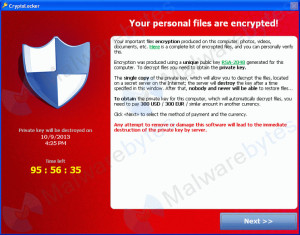
CryptoLocker Ransomware page

CryptoLocker Ransomware – If you see this on your computer screen you are in trouble.

Of all the computer viruses I’ve seen in nearly 20 years of helping people with their computers, none is nastier than what is known as “ransomware”. There have been several variations, starting with a virus called Cryptolocker. Later versions were called CryptoDefense and CryptoWall, just to name a couple. They use a powerful kind of encryption to render all of your personal files impossible to open without the encryption key. They ransom that key to the owner for as much as $1,000 US, but that could go up at any time. To increase the urgency of paying the ransom, they warn you that if you don’t pay within a day or two, the “fee”doubles in cost. If you miss the last deadline they say they destroy the encryption key.

Unlike other viruses, removing the virus does not restore access to your files. Unless you have the files backed up to an external source – either a drive not connected to your computer since getting the virus, or online backup (in “The Cloud”), your files are gone. Of course you could pay the ransom, but there is no guarantee that you will get the encryption key in exchange, since you are dealing with crooks. Many people have reported paying the money and not getting the encryption key, or it not working. Obviously, the crooks are not big on technical support.

Besides having a good, up to date antivirus program on your PC, the best defense against threats such as ransomware is to have a reliable, automatic and frequent backup program running, preferably one that keeps prior versions of changing files. We have discussed automatic online backup services in an earlier post. There is no substitute for good, frequent backups. In the case of ransomware, it’s not only the best defense, it’s often the only defense. If you back up to an external hard drive that is connected to the computer after you get the virus, your backed up files will also be inaccessible.

Once the virus is removed, if you are lucky you may be able to recover some or even all of your files, provided your operating system is Windows Vista, 7 or higher. Removing the virus is a fairly advanced technical feat, but one which is outlined in a video on YouTube.com. If you have Windows Vista or later you may be able to recover an earlier version of the file through a Windows background feature called Shadow Copy, although later variants of the virus may delete the Shadow Copy backups, as well as System Restore points. Again, the best defense against this type of virus is to have good and frequent backups. If your backup drive is connected to the computer at the time of your infection, all the files on the backup drive may be encrypted as well. That’s why online backup in addition to local backup is so important.

Besides having a good and up to date antivirus program on your PC, I recommend using “second opinion” antivirus software such as SurfRight’s Hitman Pro. This does not conflict with your main antivirus software, and it may catch infections that the primary program misses.

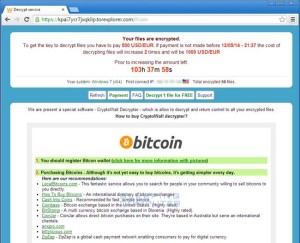
The image below is a screen shot of the CryptoWall ransomware instructions for paying the perpetrators through Bitcoin. Paying it is not a good idea.

The CryptoWall ransomware page

The CryptoWall ransomware page.

Posted in Backups, Computer, Computer Virus, Malware, PC, Security, Uncategorized, Windows XP | Tagged , , , , | Leave a comment

The End of Windows XP

XP-LogoWith Microsoft no longer releasing security updates and patches for Windows XP as of April 8, 2014, a lot of clients and friends have been asking me for my advice. They have two questions: 1) “Is it still safe to use Windows XP?” and 2) “Should I upgrade Windows XP to Windows 7 or 8?”. So partly to save time and partly because this blog is supposed to be a font of useful computer information, here is my advice:
1) Is it still safe to use Windows XP?:

It has been never been as safe to use XP as it has to use Windows 7 or later since Windows 7 came out. Research shows that XP has fewer security measures built into it than 7 and 8. As of April 8th it becomes even less secure. Until then, as soon as possible after a security hole was discovered in XP, Microsoft’s engineers would release a Windows Update patch that would plug the hole. That has been going on since the system was first introduced in 2001. Yes, it’s about 13 years old, which in computer technology time is several lifetimes. But come April 8th, no further updates will be released, according to Microsoft. So if some hack gets revealed on April 9th, any computer running Windows XP that is connected to the Internet will be vulnerable to it. Does that mean you’ll get hacked immediately? Probably not, but who wants to be the bait?

2) Should I upgrade my computer to Windows 7 or 8?:

Bottom Line: I recommend getting a new computer.

Here’s why:

There is no direct upgrade path from XP to 7 or 8. That means you cannot do the usual kind of “in-place install” upgrade where all your programs, documents and settings are still there when you finish.  Instead they MAY get deleted when you upgrade, or moved to a folder called Windows.old (see below). That means you have to first back up everything to an external drive (though you can use Windows Easy Transfer Wizard for that, it still may take up to an hour or more), do the upgrade install, then restore your documents and settings and (and this is the real time eater) REINSTALL ALL YOUR APPLICATIONS. For that you’ll need the original installer disks or downloaded the installer files from online, along with the product Activation Keys or Serial Numbers to be able to use the programs for more than a brief trial period. With all that and running all the Windows Updates it could easily be a three or four hour job, if not more. In  the end you’ll still have old hardware running a more recent operating system, inevitably slower than new hardware would. All those things considered, I recommend buying a new computer.

As long as your old computer still works, you could install Windows 7 or 8 on it and use it as a backup machine, in case your newer computer has to go out for repairs, or if you have a guest or kids that you don’t want touching your main computer. You’ll just have to buy Windows 7 or 8 and run the upgrade, which will delete your personal data*. Incidentally, that’s not a secure deletion, so this path wouldn’t make security sense if you were going to give the machine away or sell it. In that case you should do a secure wipe of the computer first, using software you boot from an external disk that will write over the data on your hard drive with random zeroes and ones. Then you can install Windows and not worry about who might wind up with the computer someday.

—-
*If you run the Windows 7 installer as a program while you are in Windows XP, and do not choose to format the C: drive partition, your old files and settings will be moved to a folder called Windows.old. After a couple of weeks if you are sure that you have recovered everything you need from your old Windows XP installation, you can delete this folder. Microsoft recommends deleting using the Disk Cleanup utility:

Post-install clean-up (optional)
WARNING–Before you use Disk Cleanup, make sure that all of your files and settings moved correctly to Windows 7 where you expected them to be. Deleting the Windows.old folder can’t be undone.
1. Click the Start button, and in the search box, type Disk Cleanup. In the list of results, click Disk Cleanup.
If you’re prompted to choose a drive, choose the drive you just installed Windows 7 on, and then click OK.
2. Click Clean up system files. If you’re prompted for an administrator password or confirmation, type the password or provide confirmation.
If you’re prompted again to choose a drive, choose the drive you just installed Windows 7 on, and then click OK.
3. Select Previous Windows installation(s) and any other categories of files you want to delete.
4. Click OK, and then click Delete Files.
© 2009 Microsoft Corporation. All rights reserved.

Posted in Computer, PC, Security, Uncategorized, Windows XP | Tagged , , , | Leave a comment

Repairing Fake Damage from a Real Virus

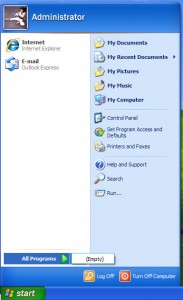
EmptySometimes after removing a computer virus from a infected Windows PC it looks as though all the user’s documents and programs are GONE. This can cause a panic for the user, not to mention the unseasoned technician. Usually nothing is actually gone, the apparently missing items are just hidden. Here’s a simple fix if this happens to a Windows XP machine:

1) Go to the Start button (if you can see it). Click My Computer. If you can’t see my computer, push the Windows Flag key (between the CTRL and ALT keys at the lower left of the keyboard) and the letter R at the same time. In the Run box that opens up, type “C:\” (without the quotation marks). Click Okay.

2) Click the Tools menu at the top left of the window. Then click on Folder Options.

3) Click the View tab. Under Files and Folders/Hidden files and folders check the radio button for “Show hidden files and folders”, then click the Okay button at the bottom.

4) Right-click the Documents and Settings folder. Choose (left-click) Properties.

5) If Hidden is checked, uncheck it and click Apply. When the dialogue box comes up check Apply changes to this folder, subfolders and files, then click Okay.

6) During the progress bar for applying the changes if you get an “Error Applying Attributes” message, click Ignore or Ignore All.  When the process is finished click Okay.

7) Repeat steps 2 and 3, but this time check the button “Don’t show hidden files or folders” (unless you want the normally hidden files and folders to be visible).

Voila! The “missing” programs, documents, desktop icons, folders and files are back as they were before the virus.

In Windows 7 it’s a bit more complicated. If you have that problem, please contact us for help.


Posted in Computer, Computer Virus, Desktop, Laptop, PC, Security, Uncategorized | Leave a comment